How To Connect Bluetooth Headset To PS4 Wireless Audio Setup
25 September 2026 | 136
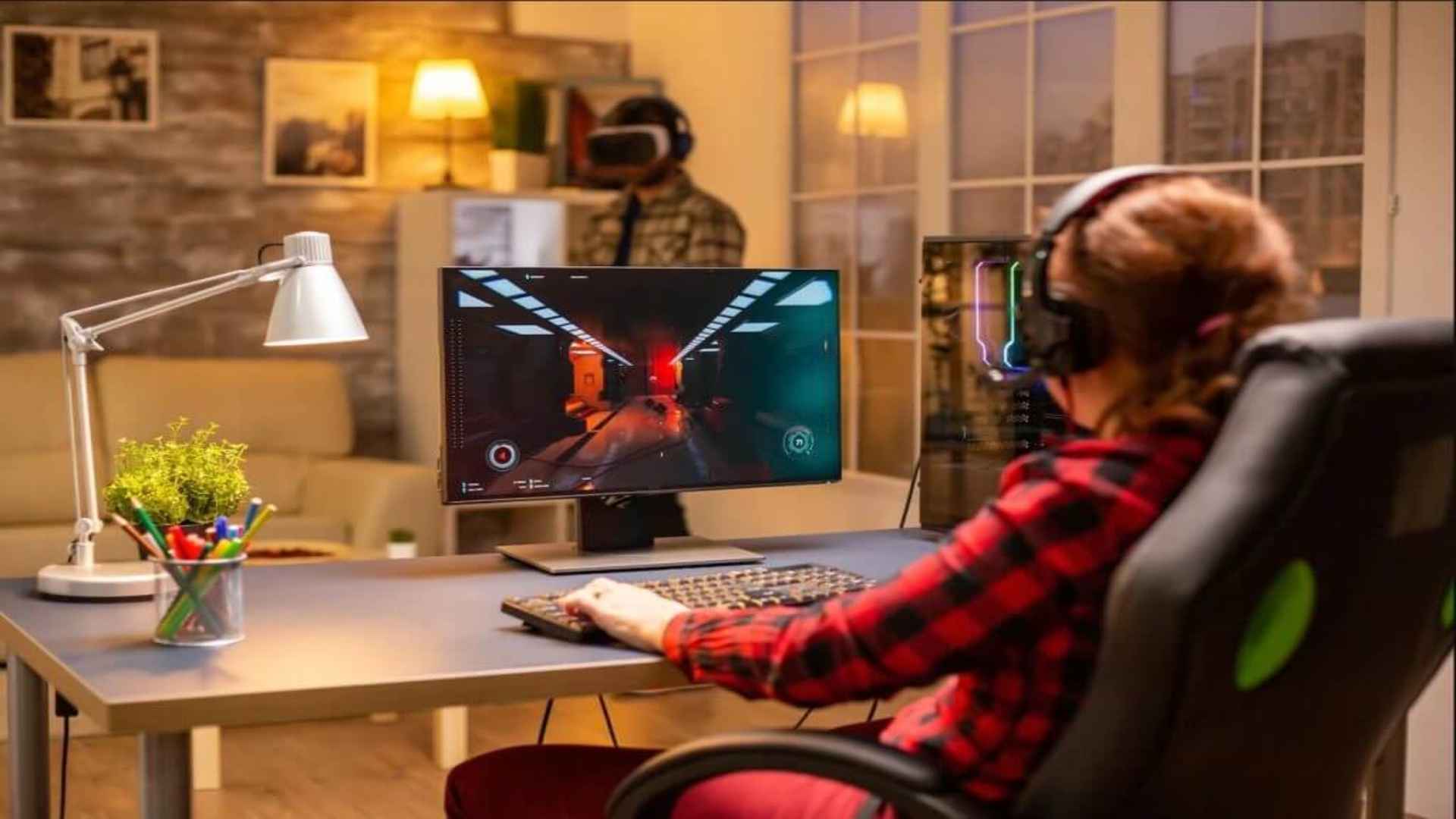
Connecting a standard Bluetooth headset directly to a PlayStation 4 console can often lead to unexpected compatibility errors. Sony designed the system with native Bluetooth restrictions that prioritize controller connections and dedicated audio profiles over standard consumer headphones. Fortunately, gamers can easily bypass these hardware limitations using a few reliable wireless audio workarounds.
Understanding PS4 Bluetooth Audio Restrictions
The PlayStation 4 utilizes Bluetooth technology, but it intentionally restricts native audio streaming to prevent latency issues. Most commercial earbuds and headphones rely on Bluetooth profiles that introduce noticeable audio delay, which ruins real-time gaming experiences. Consequently, the console only pairs natively with specific officially licensed headsets equipped with dedicated adapters.
When attempting to pair standard wireless headphones through the system settings, players usually encounter an error message stating that Bluetooth audio devices are not supported. Understanding this core limitation saves time and helps users choose the correct secondary accessories. Luckily, adding a simple external adapter solves this connectivity challenge seamlessly.
Using a USB Bluetooth Adapter for Wireless Sound
The most popular method to establish a wireless audio link is plugging a USB Bluetooth transmitter directly into the console. Insert the adapter into an available front USB port on the console, then set both the transmitter and your headset into pairing mode. Once the devices synchronize, the console recognizes the adapter as a standard USB audio output.
After establishing the connection, navigate to the console audio settings to ensure sound routes properly to your headphones. Access Settings, select Devices, and choose Audio Devices to verify that the output device reflects your connected USB transmitter. Adjusting the volume controls in this menu guarantees crisp in-game sound effects and balanced multiplayer chat.
Connecting Your Headset Through Smart TV Bluetooth
If you prefer not to purchase additional USB dongles, connecting your wireless headset directly to your television offers an excellent alternative. Modern smart TVs feature built-in Bluetooth audio capabilities that receive sound directly through the HDMI connection from your gaming console. Simply access your TV sound settings menu and pair your headphones as the primary audio output destination.
This setup routes all PlayStation 4 gameplay audio seamlessly to your ears without requiring any modifications to the console itself. However, keep in mind that TV-based connections generally do not support microphone chat features during online multiplayer matches. Players who only require clear game sound for single-player adventures will find this solution fast and hassle-free.
Alternative Wireless Setup Options and Tips
Another convenient workaround involves using a compact 3.5mm Bluetooth transmitter plugged into the bottom port of your DualShock 4 controller. This approach creates a localized wireless transmitter that broadcasts game sound straight to your favorite wireless earbuds. It provides mobility around your gaming area while keeping latency to an absolute minimum.
Before selecting your preferred setup method, evaluate whether online voice chat or low-latency performance matters most for your gaming routine. Selecting transmitters with advanced low-latency audio codecs ensures high-quality sound synchronization during fast-paced action games. Implementing these simple setups unlocks a convenient and comfortable wireless gaming audio experience on your console.